
Learn how to install the Agile Retrospectives app in your Jira instance.
You must be a Jira administrator to be able to install apps.
You can install the Agile Retrospectives for Jira app in Cloud and Data Center sites.
Installing the app in Jira Cloud
-
Select the Apps dropdown menu from top navigation bar, and choose Explore new apps.
-
Once the screen loads, you can type Agile Retrospectives for Jira in the search bar to find the app.
-
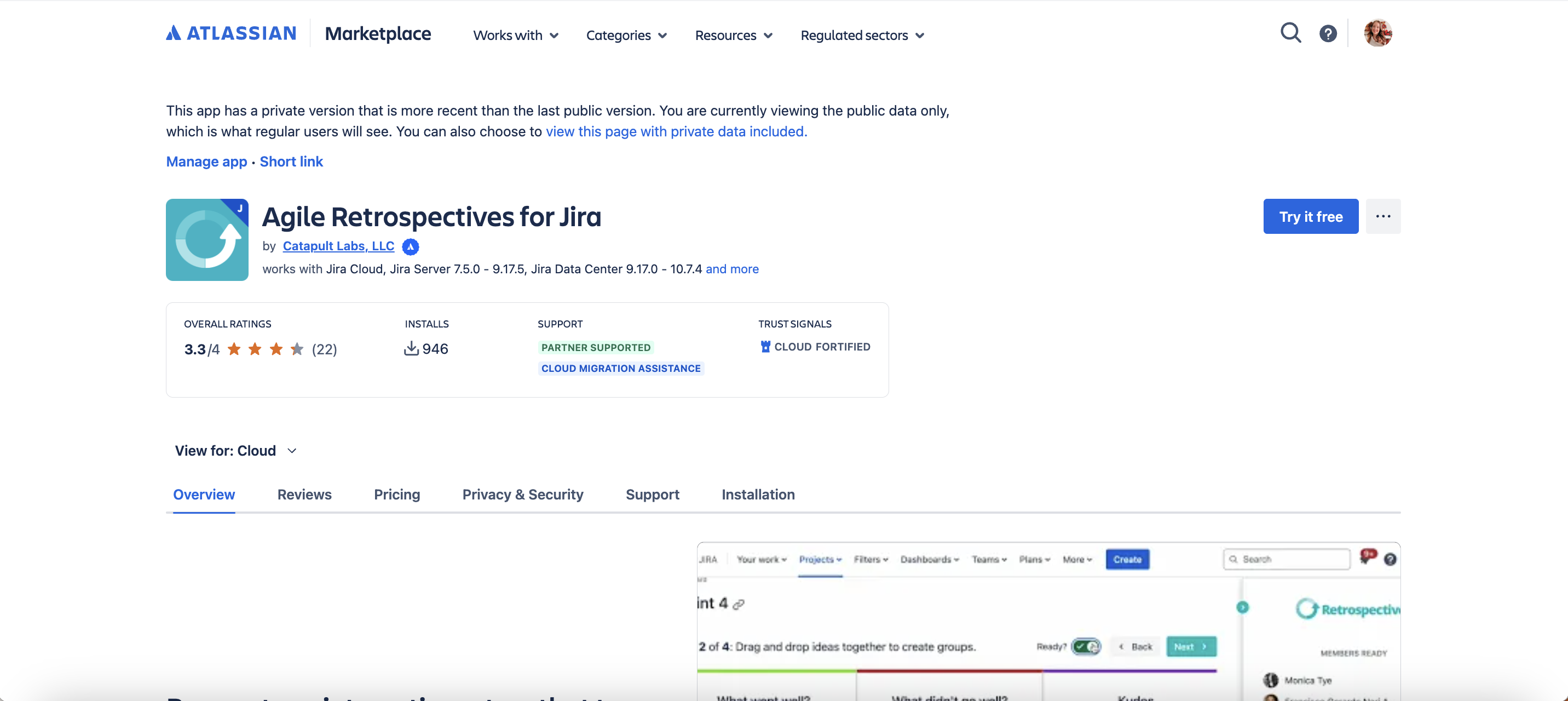
Select the app tile and the app details page loads.
-
You can select Try it Free to install the app.
-
Once the app is installed, you will be notified via a success message. Following which, you can start using the app.
Installing the app in Jira Data Center
-
Select the Settings drop down menu and select Manage apps.
-
Select Find new apps from the left side menu.
-
Once the screen loads, you can type Agile Retrospectives for Jira in the search bar to find the appropriate app version.
-
Select free trial to begin the trial or buy now to purchase a license for Agile Retrospectives for Jira.
-
Select accept and install in the modal that opens up to confirm the app installation.
-
Agile Retrospectives for Jira begins to download and you’ll be prompted to log into your MyAtlassian account.
-
Enter your credentials and select Generate license.
-
A license key will be generated, and select Apply license to get started with the app. If you're using an older version of UPM, you can copy and paste the license into your Jira instance.
You can find more information about how to install apps in Jira via Atlassian’s documentation.
Next Steps
Learn how to find the Agile Retrospective app in your site.