
Archiving removes lists and cards from the board without deleting them. You can bring them back at any time.
Archiving a card
-
Open the card
-
Under Actions, click Archive

Archiving a list
-
Click the ... menu in the list header
-
Select Archive this list
When you archive a list, all the cards in it are archived together with the list.

Viewing archived items
-
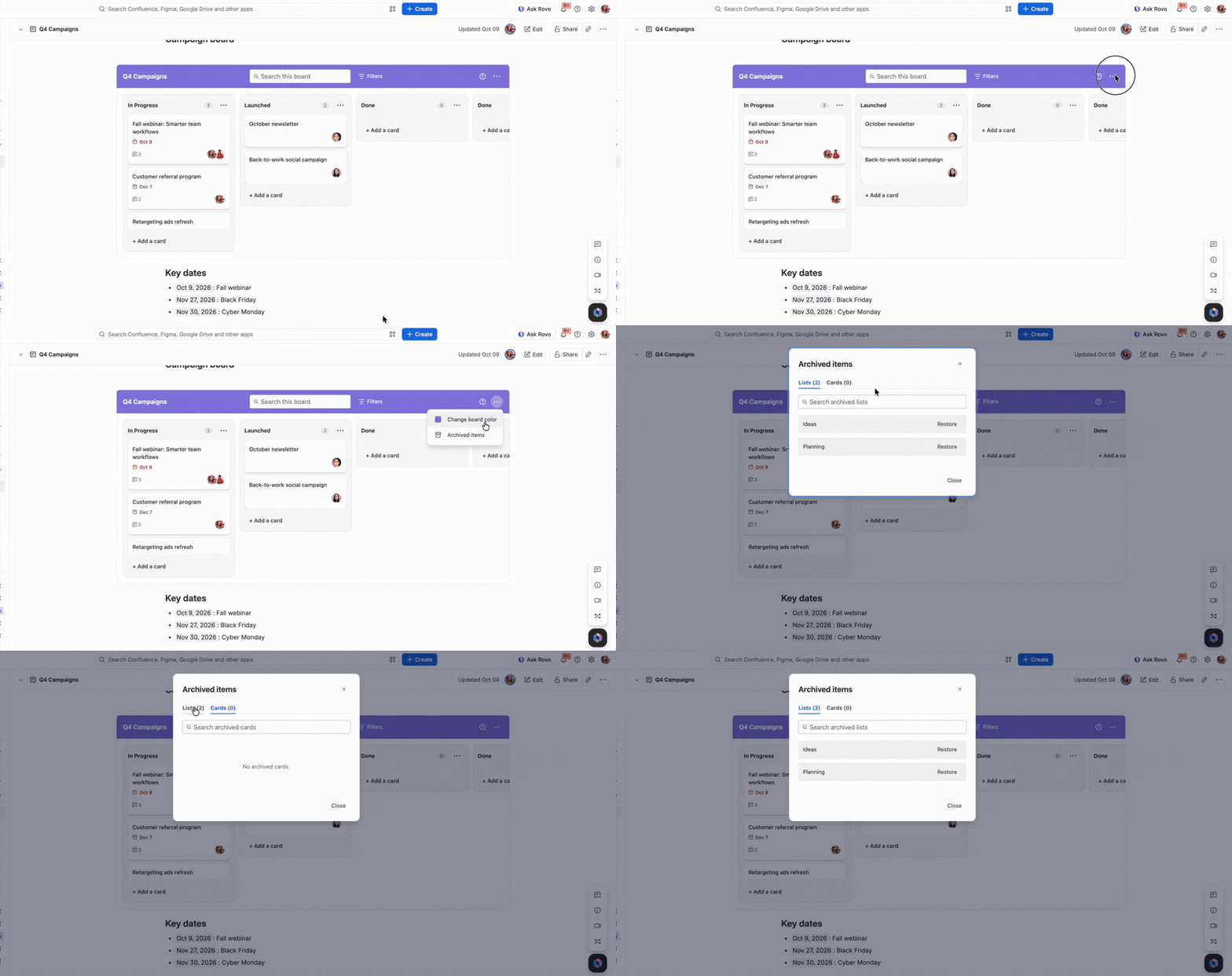
Click ... in the top-right corner of the board
-
Select Archived items
-
Use the Lists or Cards tab. Each tab shows how many items it contains
-
To find an item, type in Search archived lists or Search archived cards
Archived cards show the list they belonged to (for example, in Planning). Cards archived as part of a list don't appear in the Cards tab. To get them back, restore the list.
Restoring a card or list
Click Restore next to the item. It returns to the board in the place where it was.
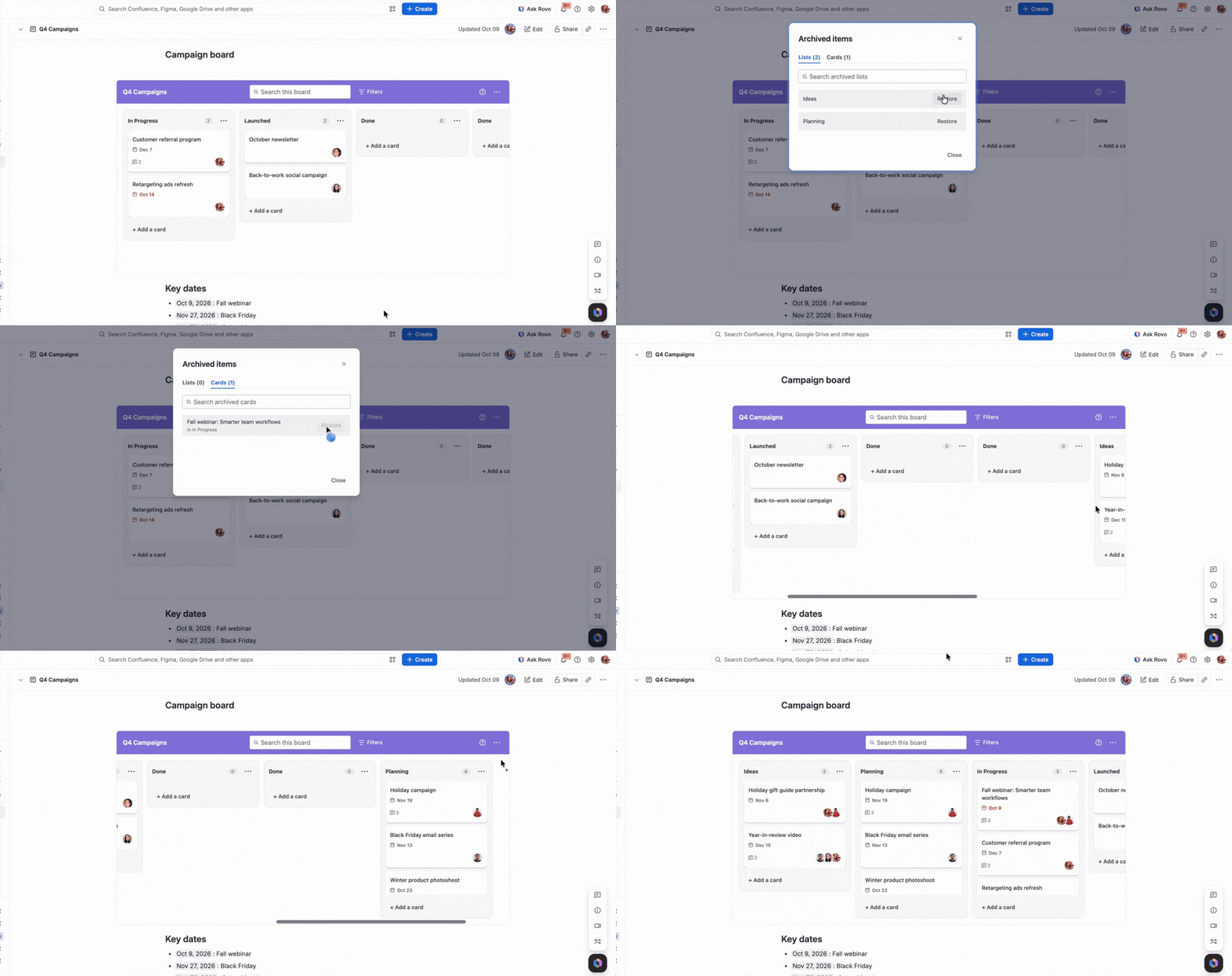
If you archived a card and later archived the list it belongs to, the card's Restore button is unavailable. Hover over it to see Restore the list first to restore this card. Restore the list from the Lists tab first, then restore the card from the Cards tab.