
As your board grows, use the search box and filters in the board header to find the cards you need.
Searching a board
-
In the board header, click Search this board
-
Type a keyword
-
The board shows only the cards whose title matches. To see all cards again, clear the search field
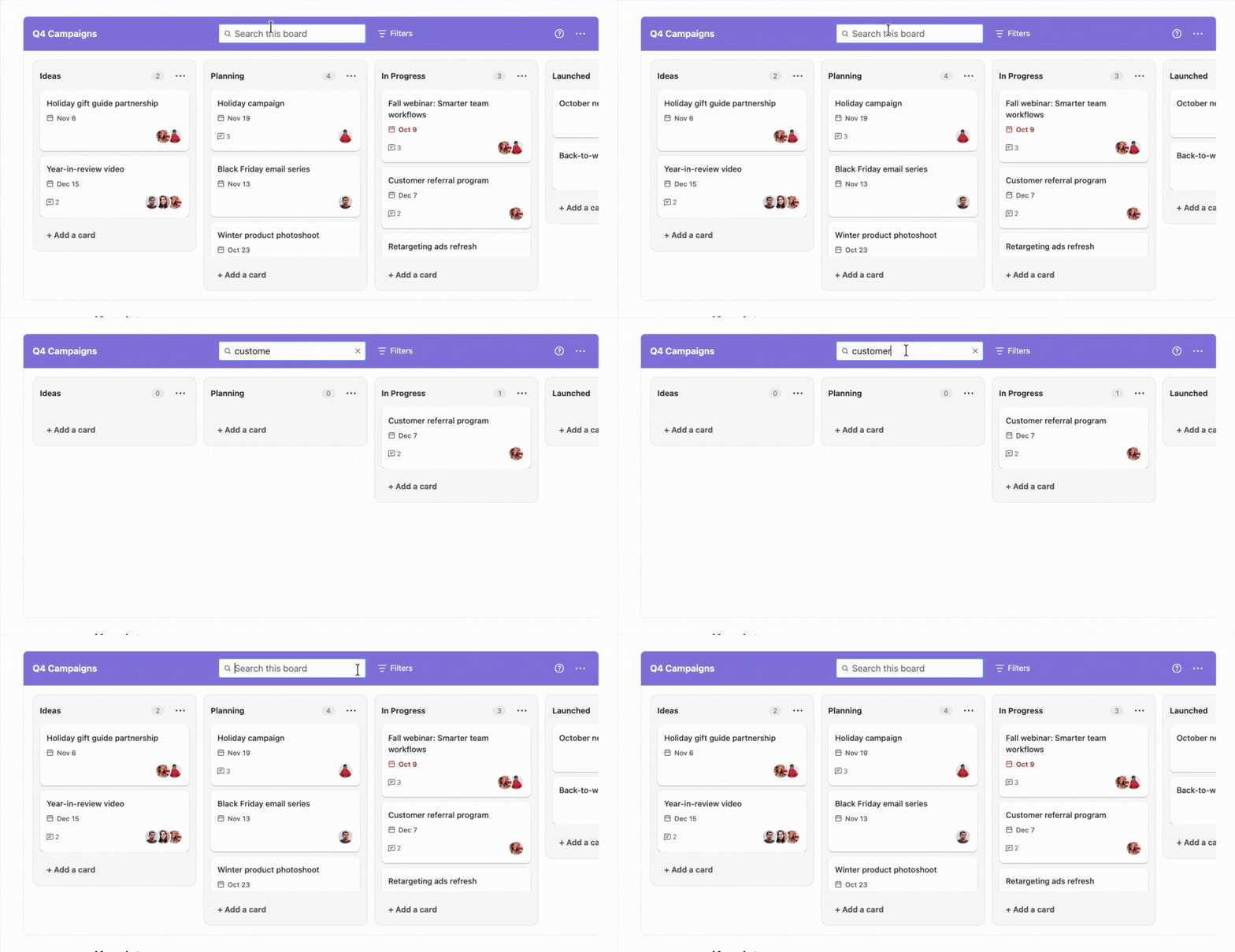
Search looks at card titles only. It doesn't search descriptions or comments.
Filtering by assignee
-
In the board header, click Filters
-
Under Assignee, check the box next to one or more people
-
The board shows only the cards assigned to the people you selected
To remove the filters, click Clear all at the top of the Filters dropdown.
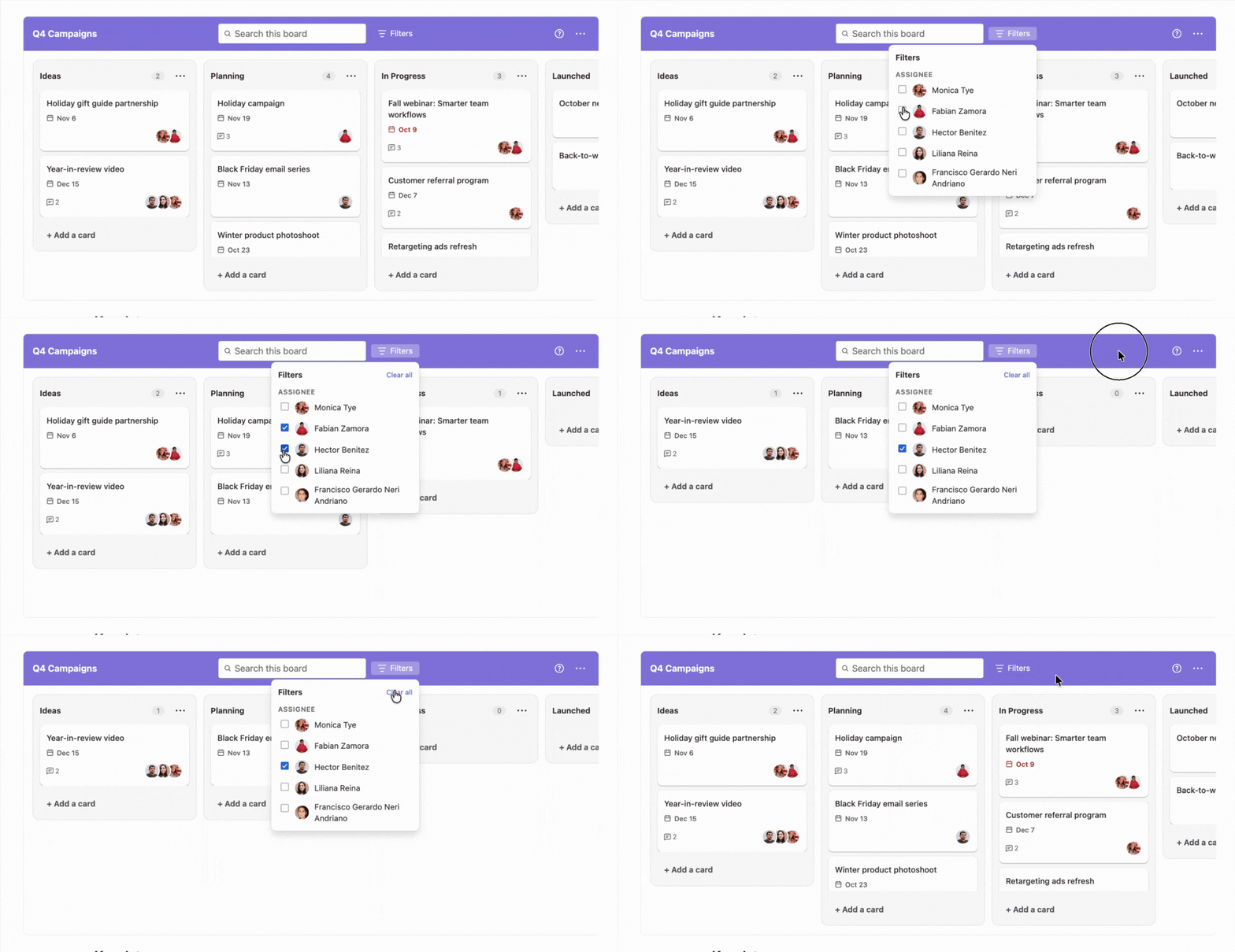
Filters stay applied after you close the Filters dropdown. To check which filters are active or to clear them, open Filters again.
Next Steps
Learn how to archive and restore lists and cards in Archiving and restoring.