
Cards represent the individual tasks or items on your board. They live inside lists.
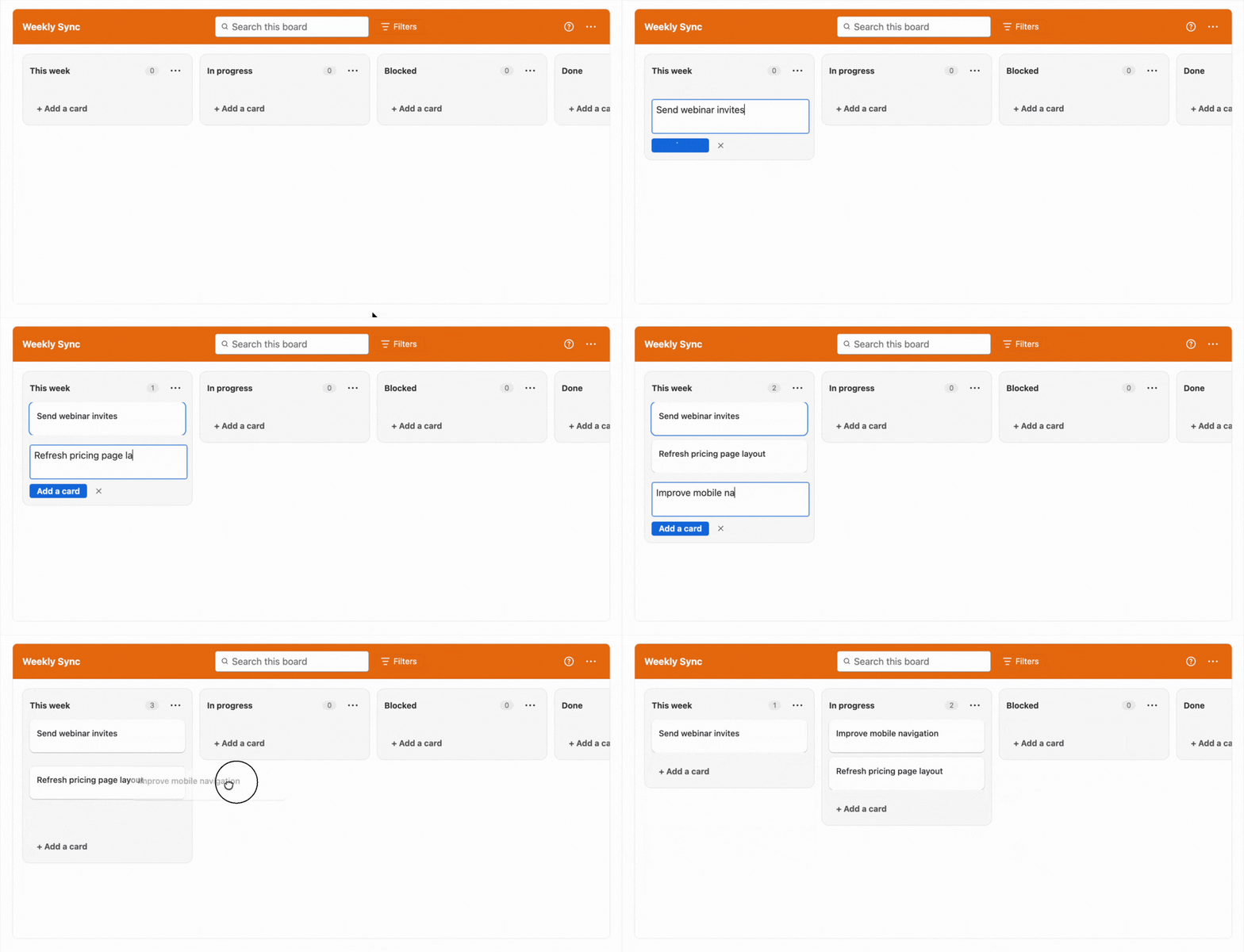
Adding a card
-
At the bottom of a list, click + Add a card
-
Type a title for the card and press Enter
-
The field stays open, so you can type more titles and press Enter after each one to add several cards in a row
-
Press Esc or click outside the field when you're done
What you see on a card
A card on the board gives you a quick summary:
-
Title: the name of the card
-
Due date: shown if the card has one
-
Comments: an icon with the number of comments on the card
-
Assignees: avatars of the people assigned to the card

Reordering cards
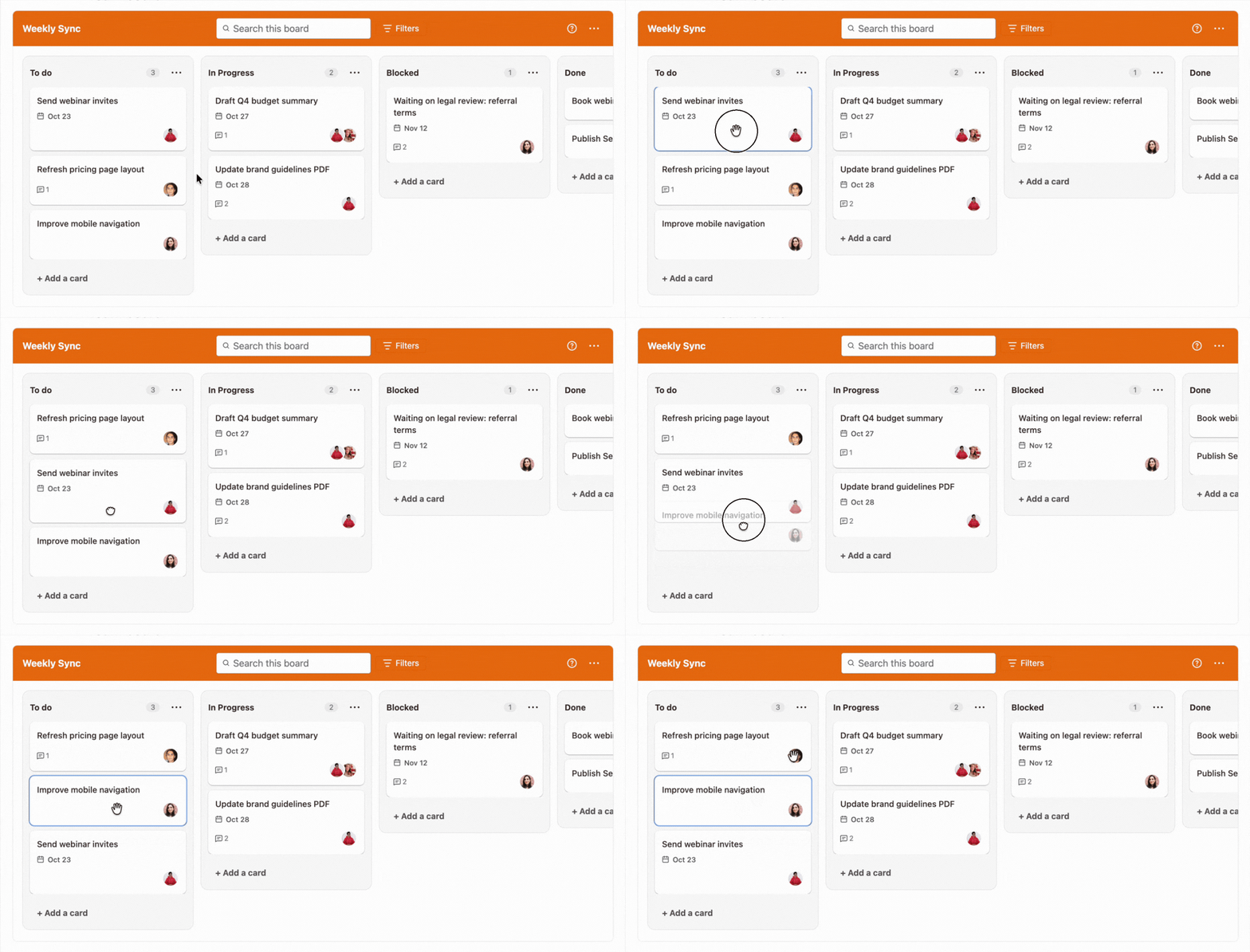
Drag a card up or down inside a list and drop it in its new position.
Moving a card to another list
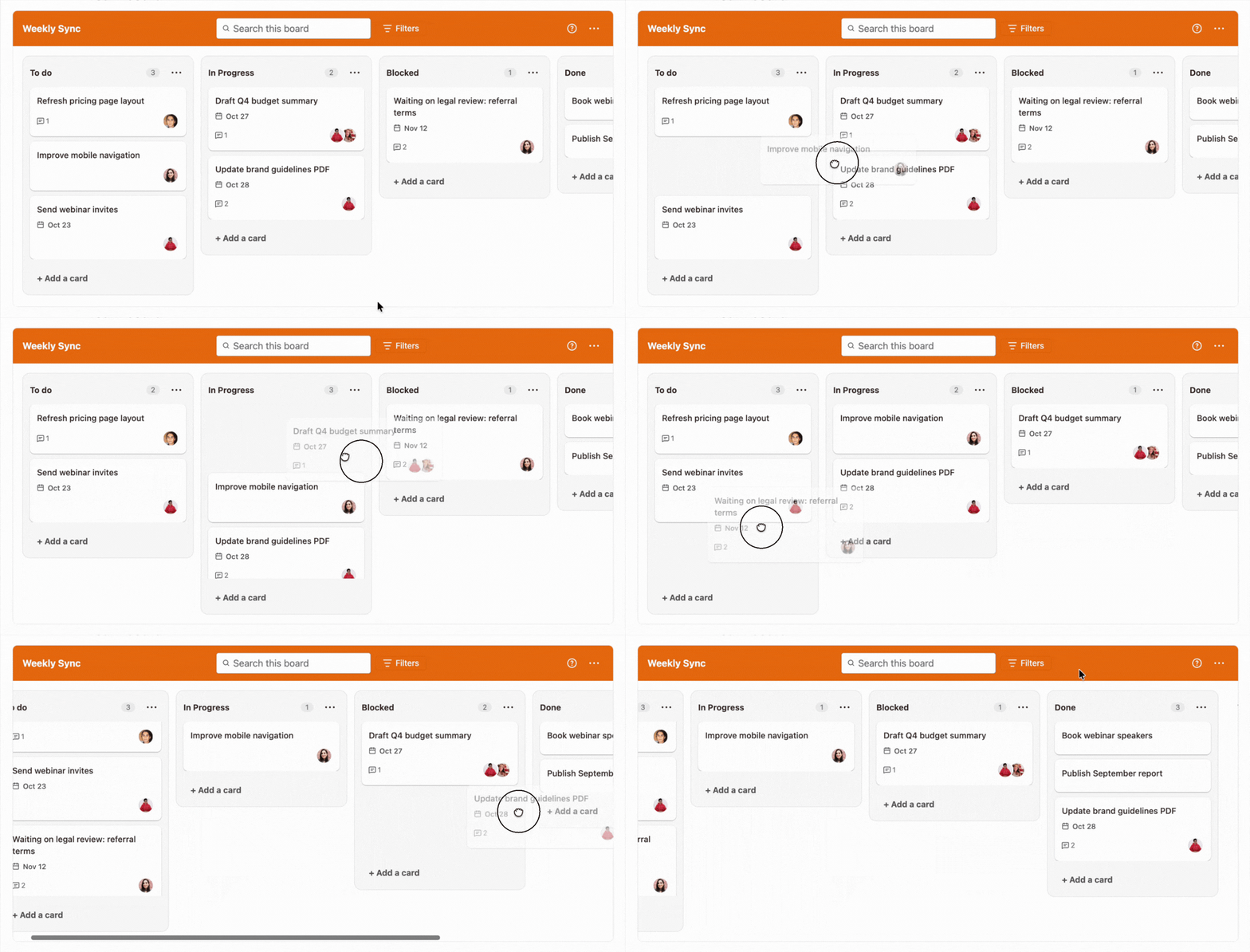
Drag the card and drop it in another list. Use this to move work forward as it progresses, for example from In Progress to Launched.
Opening a card
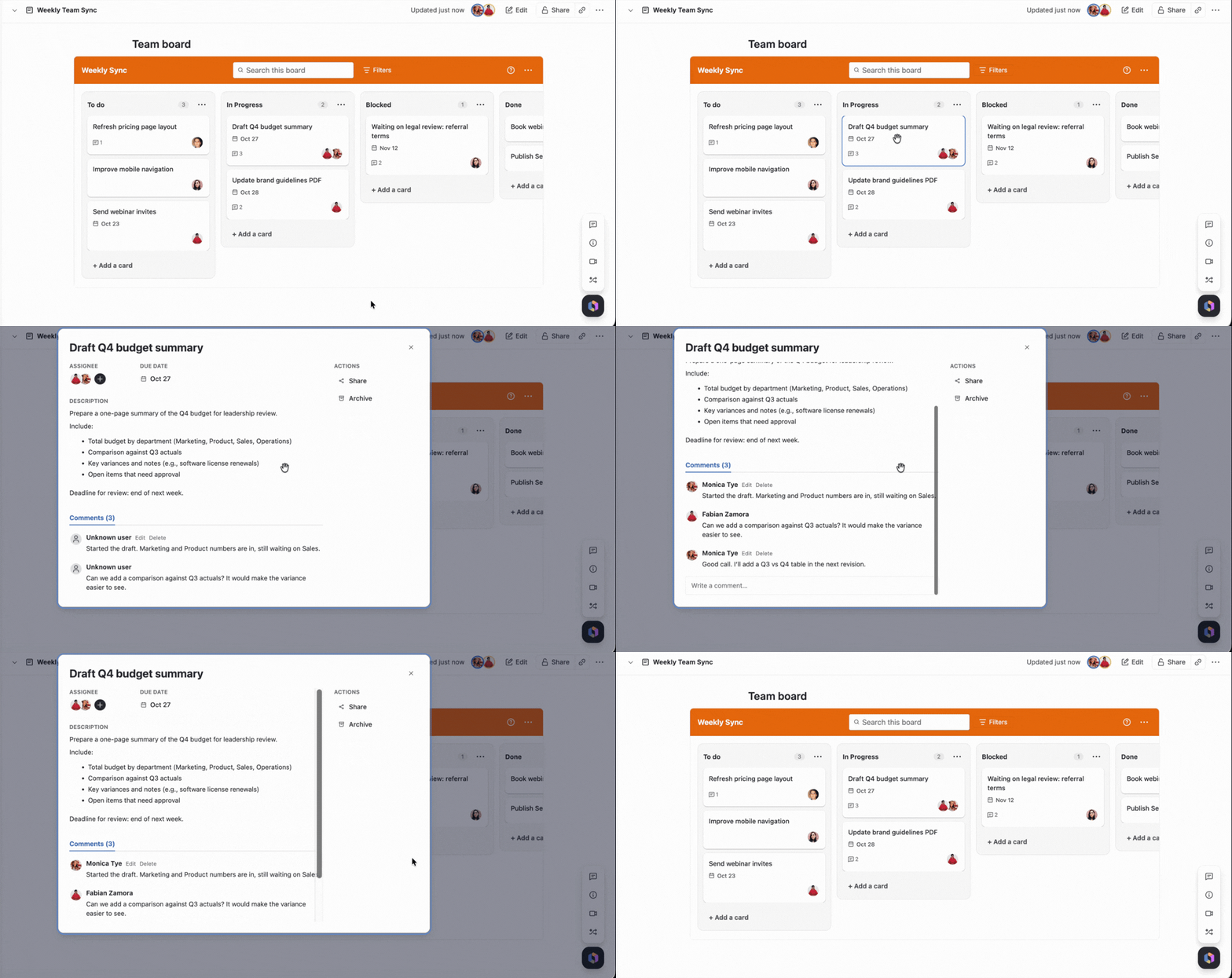
Click a card to open its details, where you can edit the title, assign members, set a due date, write a description, and add comments. See Card details.
Next Steps
Learn how to add details to your cards in Card details.