
Lists are the columns of your board. Use them to represent stages of a process (for example, Backlog, In Progress, and Done) or any other way you want to group cards.
Creating a list
-
Open the page that contains your board
-
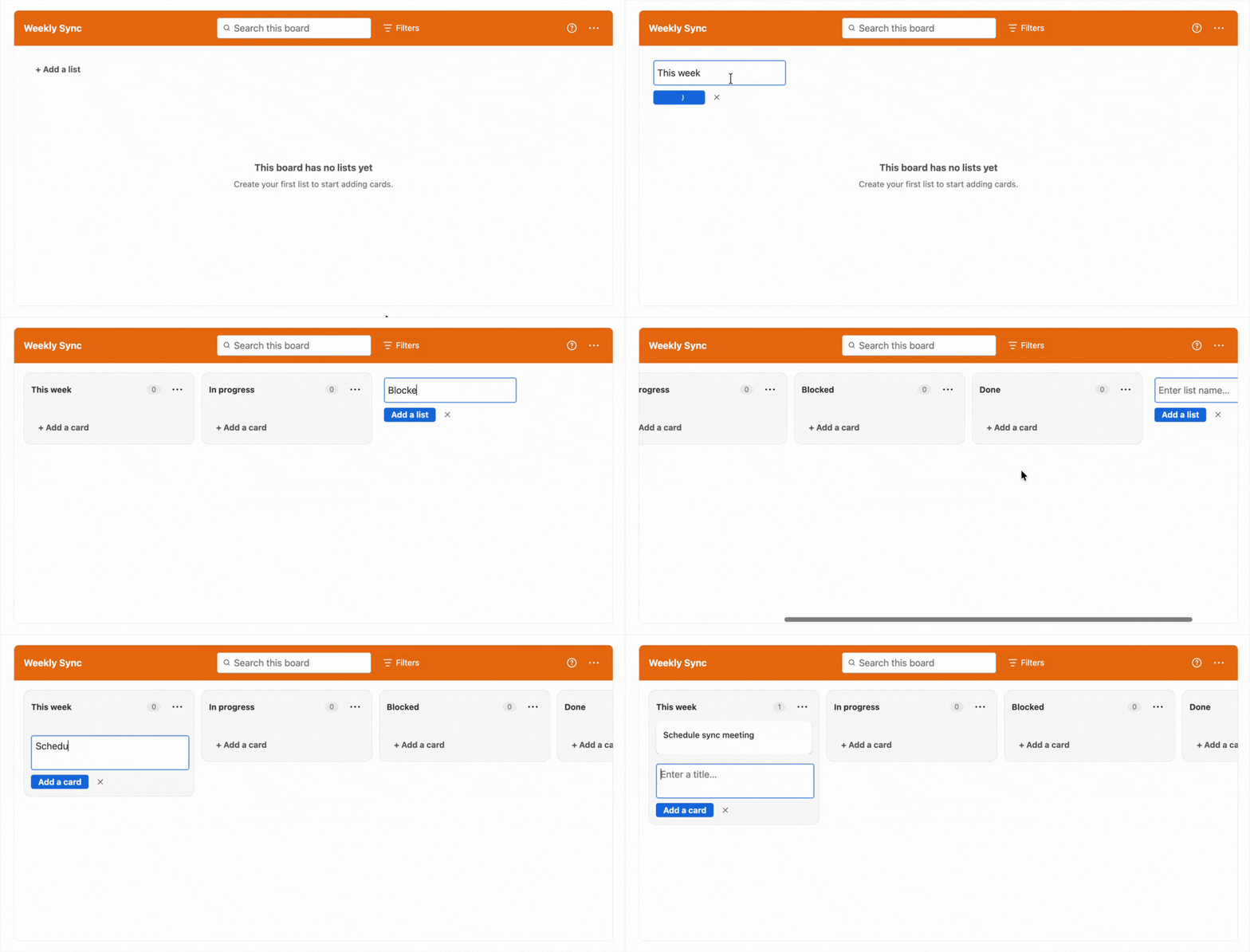
Click + Add a list. On a new board with no lists, the button appears in the first column. Once the board has lists, it appears to the right of the last list
-
Type a name for the list and press Enter
The new list is added at the end of the board.
Renaming a list
-
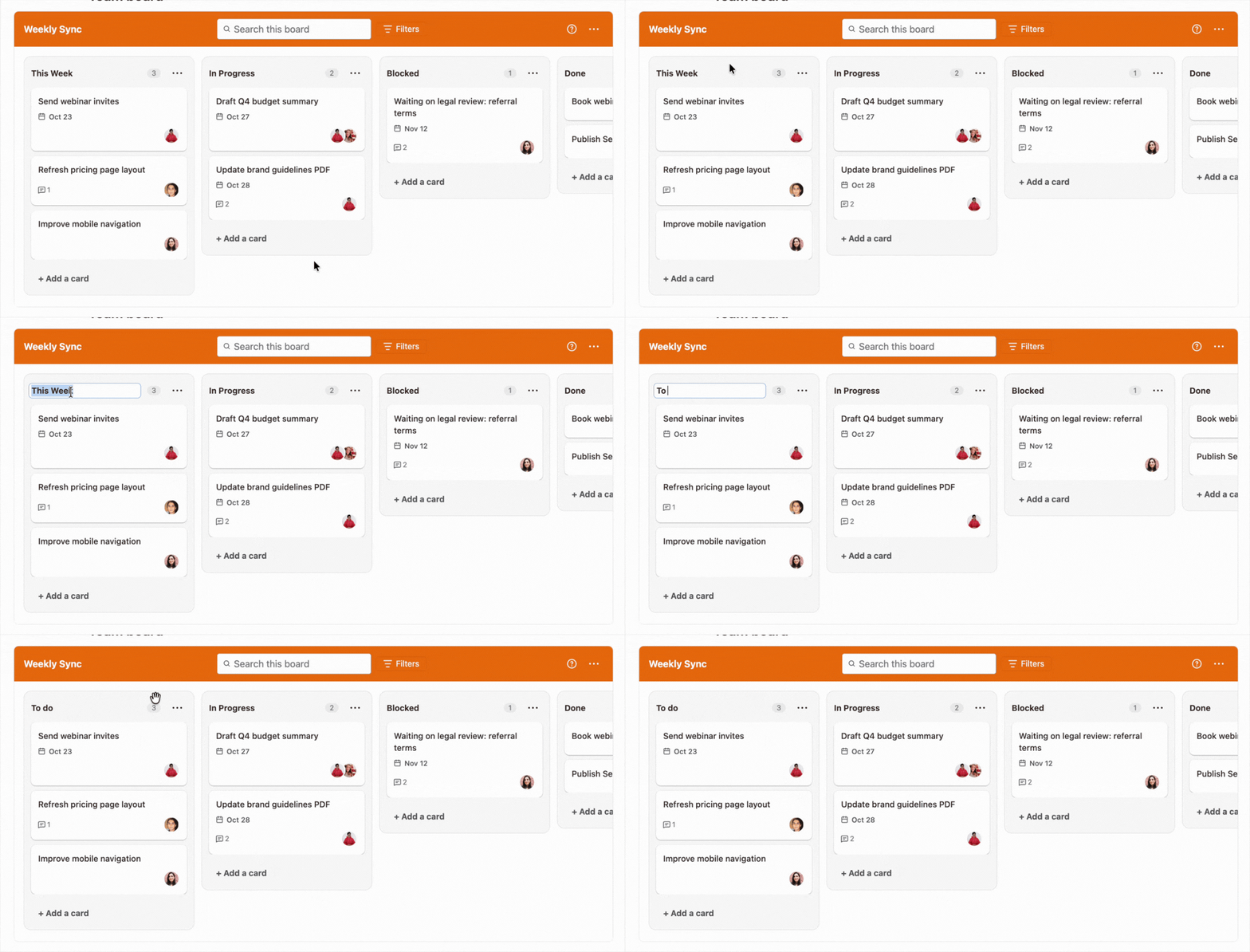
Click the list title. The title becomes an editable field
-
Type the new name and press Enter
Reordering lists
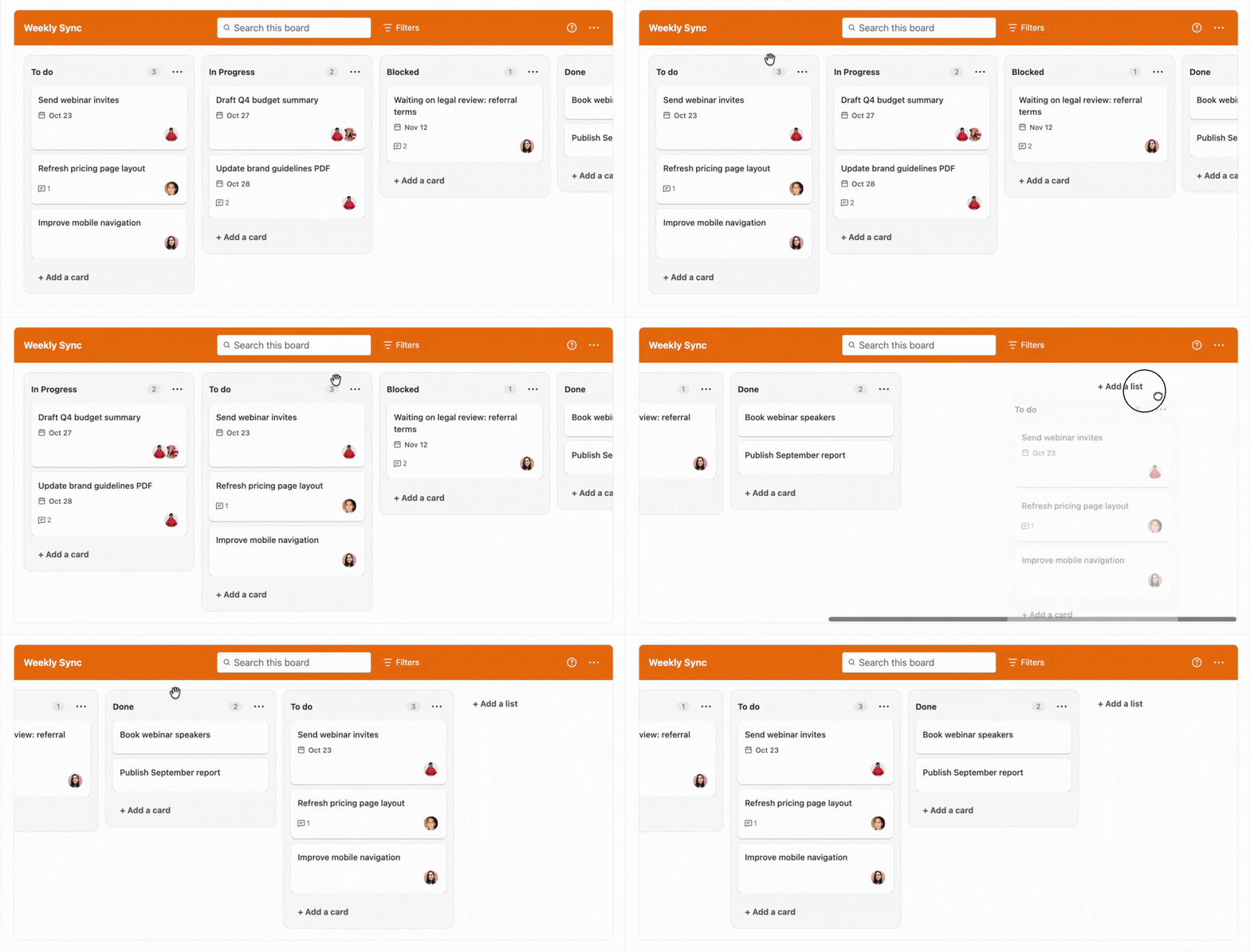
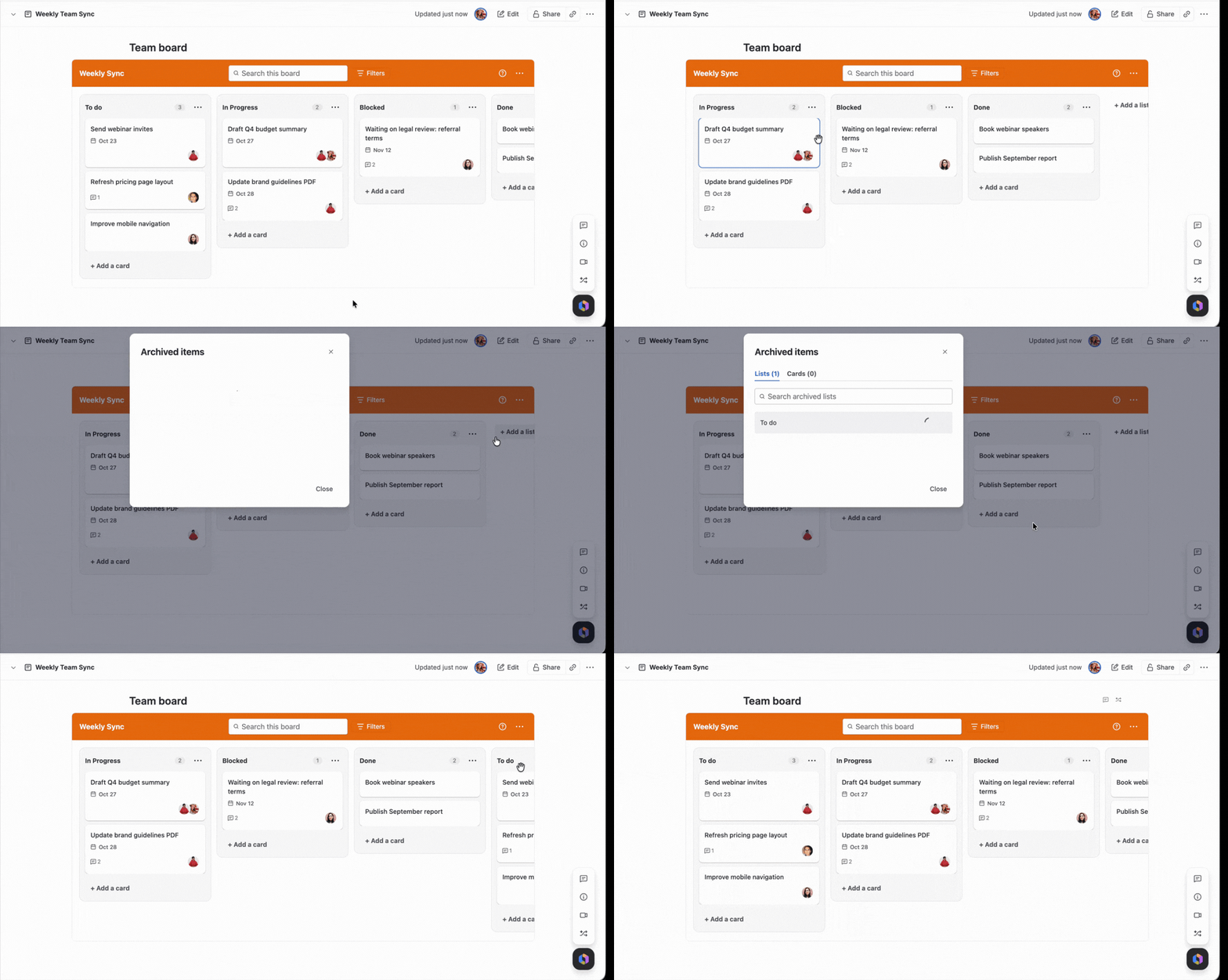
Drag a list by its header, or by the gray area at the bottom of the list, and drop it where you want it. The other lists move to make room.
Card count
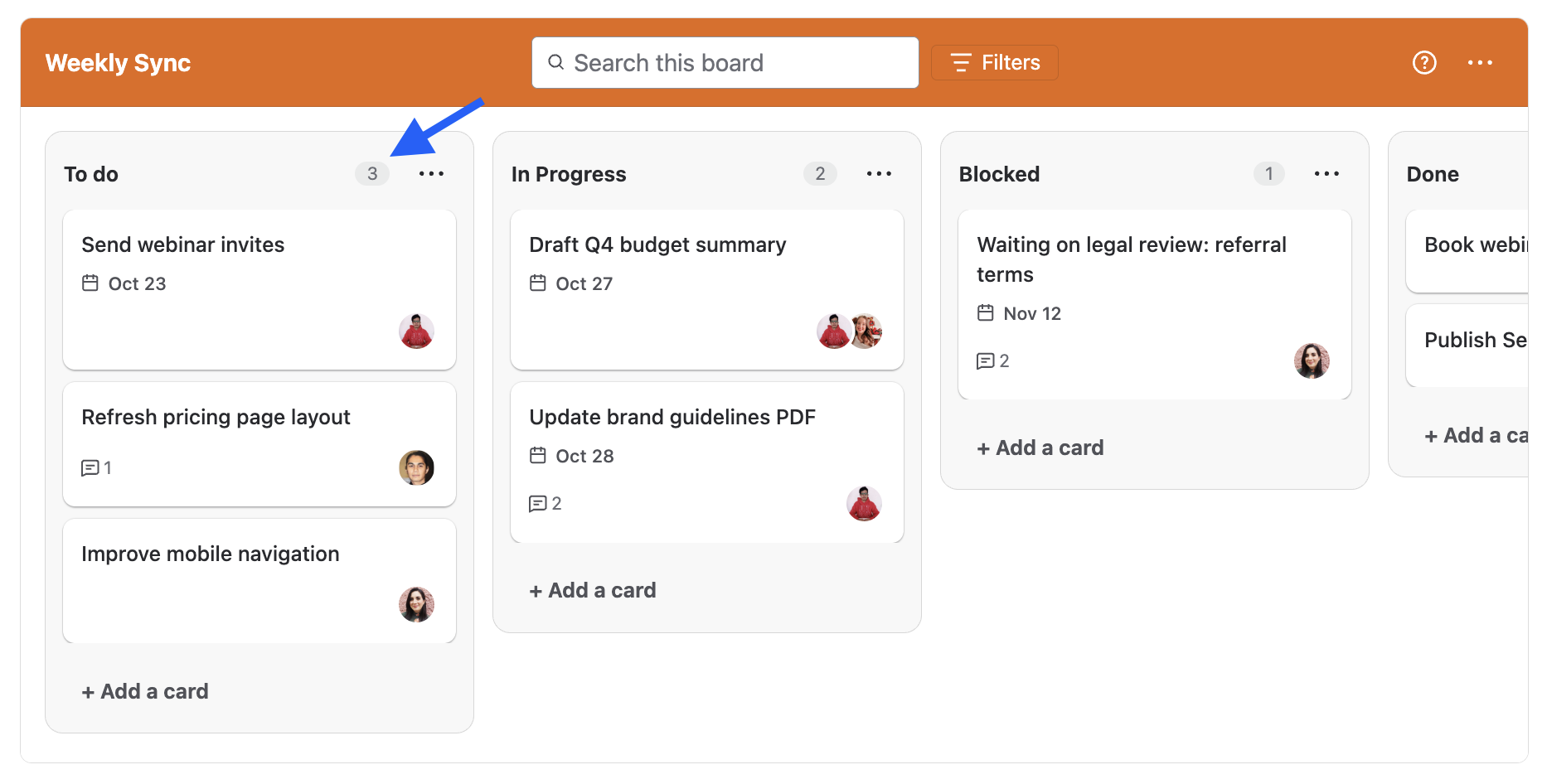
Each list shows how many cards it contains in a pill to the right of the list name.
Archiving a list
-
Click the ... menu in the list header
-
Select Archive this list
The list and all the cards in it are archived together and removed from the board. To get them back, restore the list from Archived items. See Archiving and restoring.
Next Steps
Learn how to add and edit cards in Working with cards.