
Task Boards for Confluence works as a macro that you can add directly to any Confluence page.
Creating a board
-
Open the Confluence page where you want to add the board and click the pencil icon to edit it
-
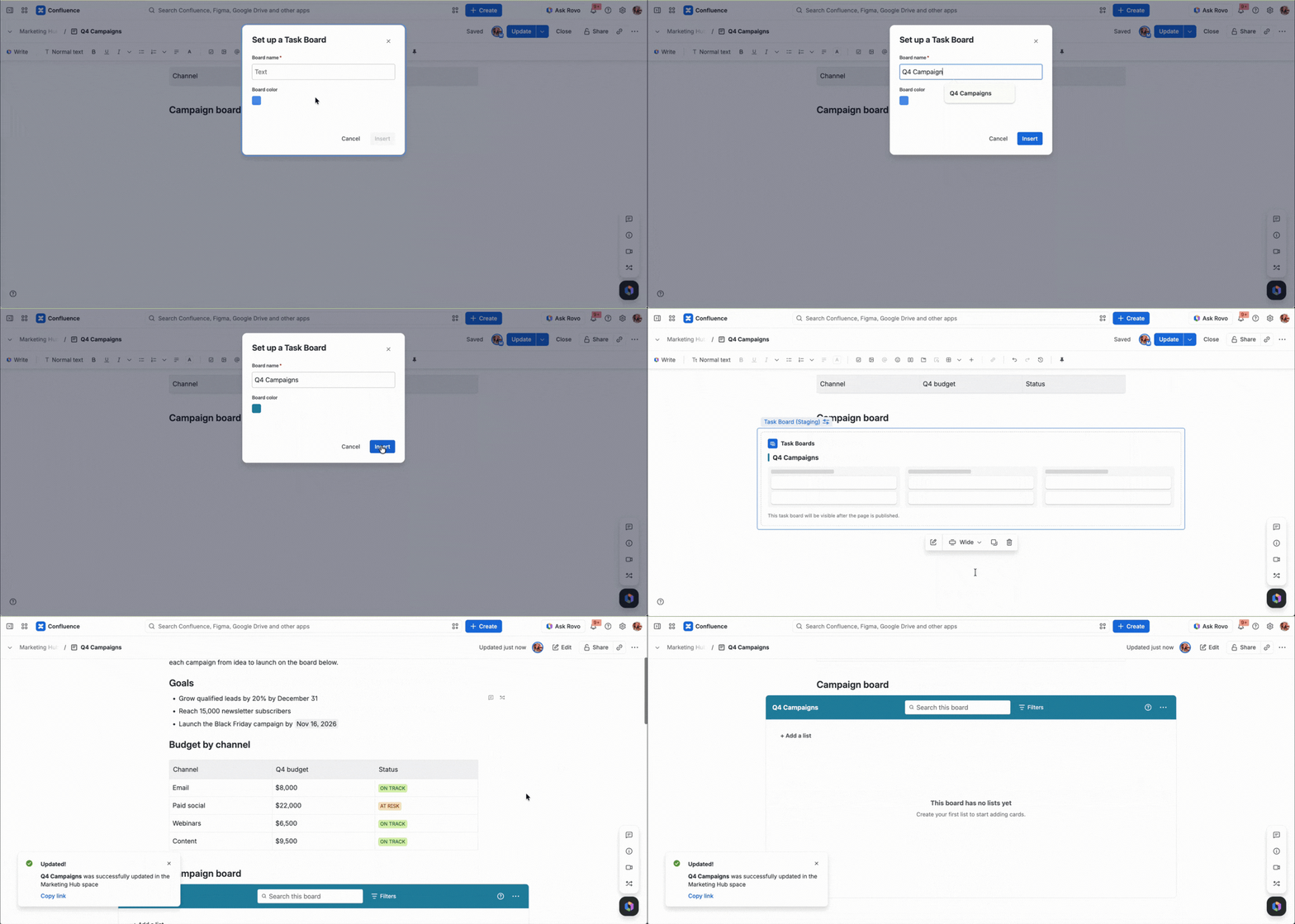
Click the + sign, type Task Boards in the search bar, and select the app. The Set up a Task Board dialog opens
-
Enter a name in the Board name field (required)
-
Optionally, click the color swatch under Board color and choose a color for your board
-
Click Insert
-
Select Go wide mode so your board has more space
-
Click Publish (or Update) at the top of the page
The board appears on the page with the name and color you chose.
Editing a board's settings
-
Open the page where your board lives and click the pencil icon to edit it
-
Click the Task Boards macro, then click the pencil icon. The board setup dialog opens
-
Change the name or color, then click Update
-
Click Publish (or Update) at the top of the page to apply your changes

Next Steps
Learn about the board header and its menus in Board overview.