
A board lives inside a Confluence page and has four parts: the board header, lists, cards, and card details.
1. Board header
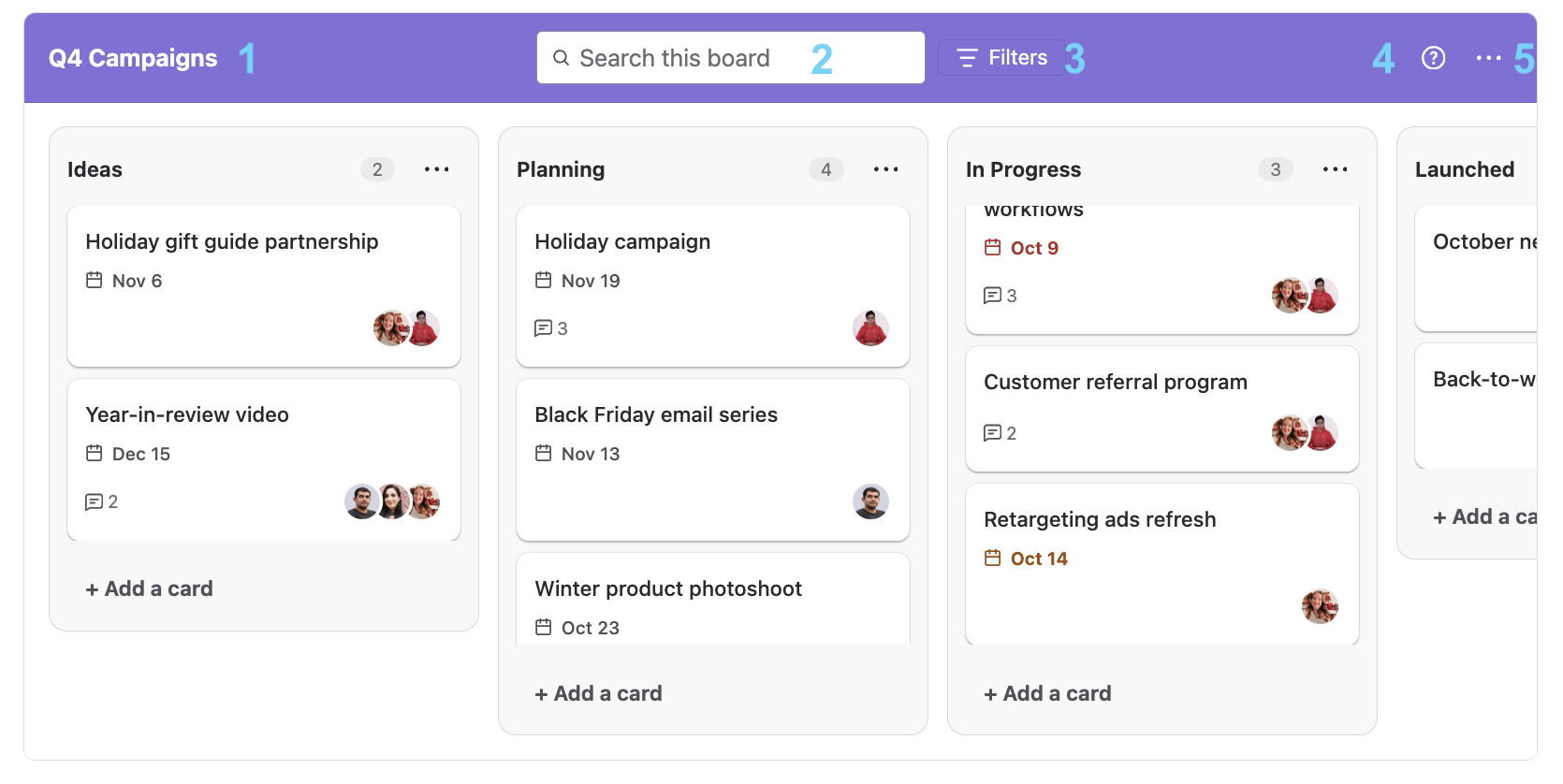
The bar at the top of the board.
-
Board name: the name you chose when you inserted the board. Click it to rename the board
-
Search this board: find cards by title. See Searching and filtering a board
-
Filters: narrow the board by assignee. See Searching and filtering a board
-
Help (?): opens the help menu
-
... (more actions): opens the board menu
Renaming the board
-
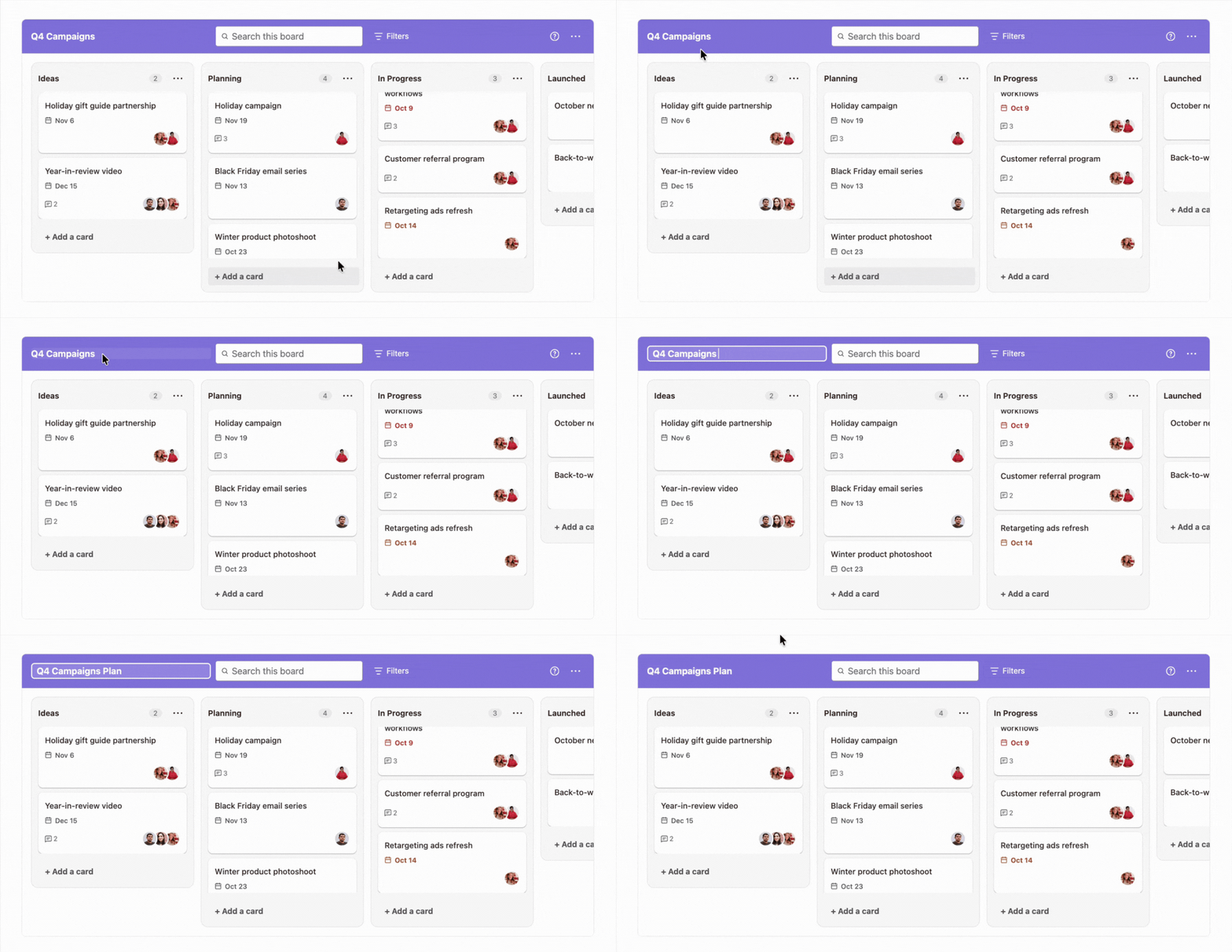
Click the board name in the board header. It turns into an editable field
-
Type the new name and press Enter
Board menu
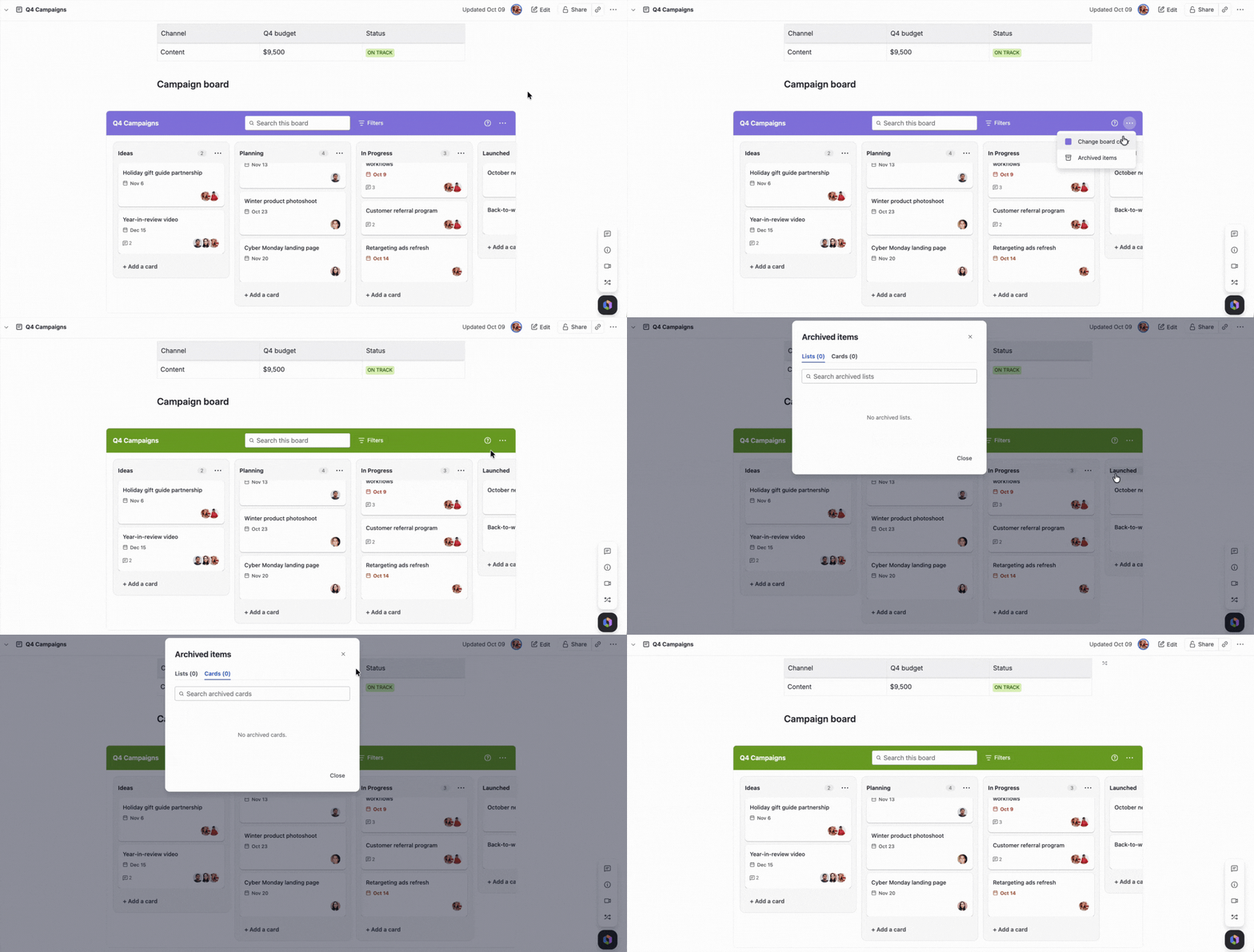
Click ... in the top-right corner of the board to:
-
Change board color: choose a color from the Board color palette. The board header changes to the color you select
-
Archived items: view and restore the lists and cards you've archived. See Archiving and restoring
Help menu
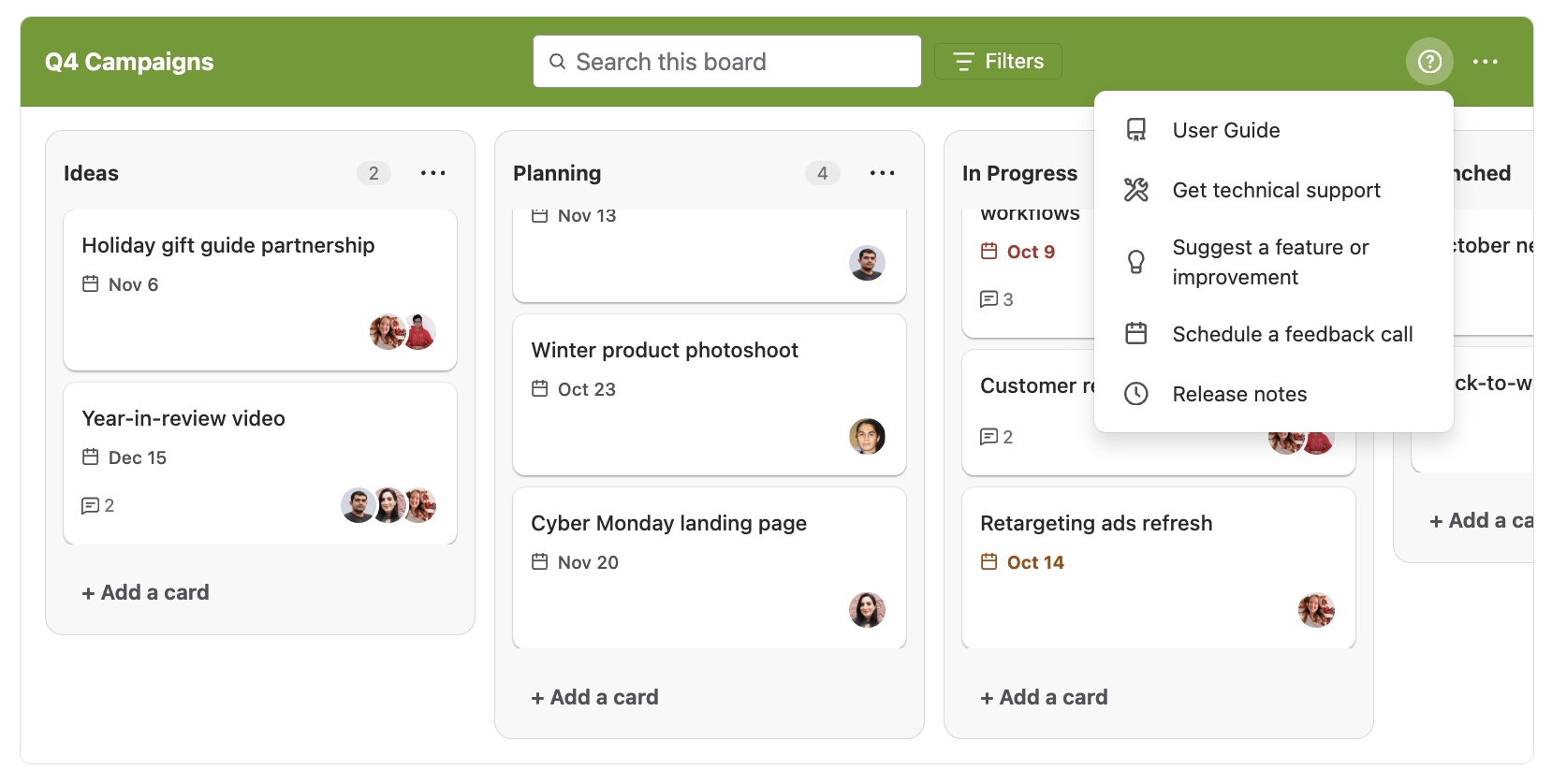
Click ? in the board header to open the help menu:
-
User Guide: opens this documentation
-
Get technical support: contact the support team
-
Suggest a feature or improvement: send us your ideas
-
Schedule a feedback call: book a call with the team
-
Release notes: see what's new in each version
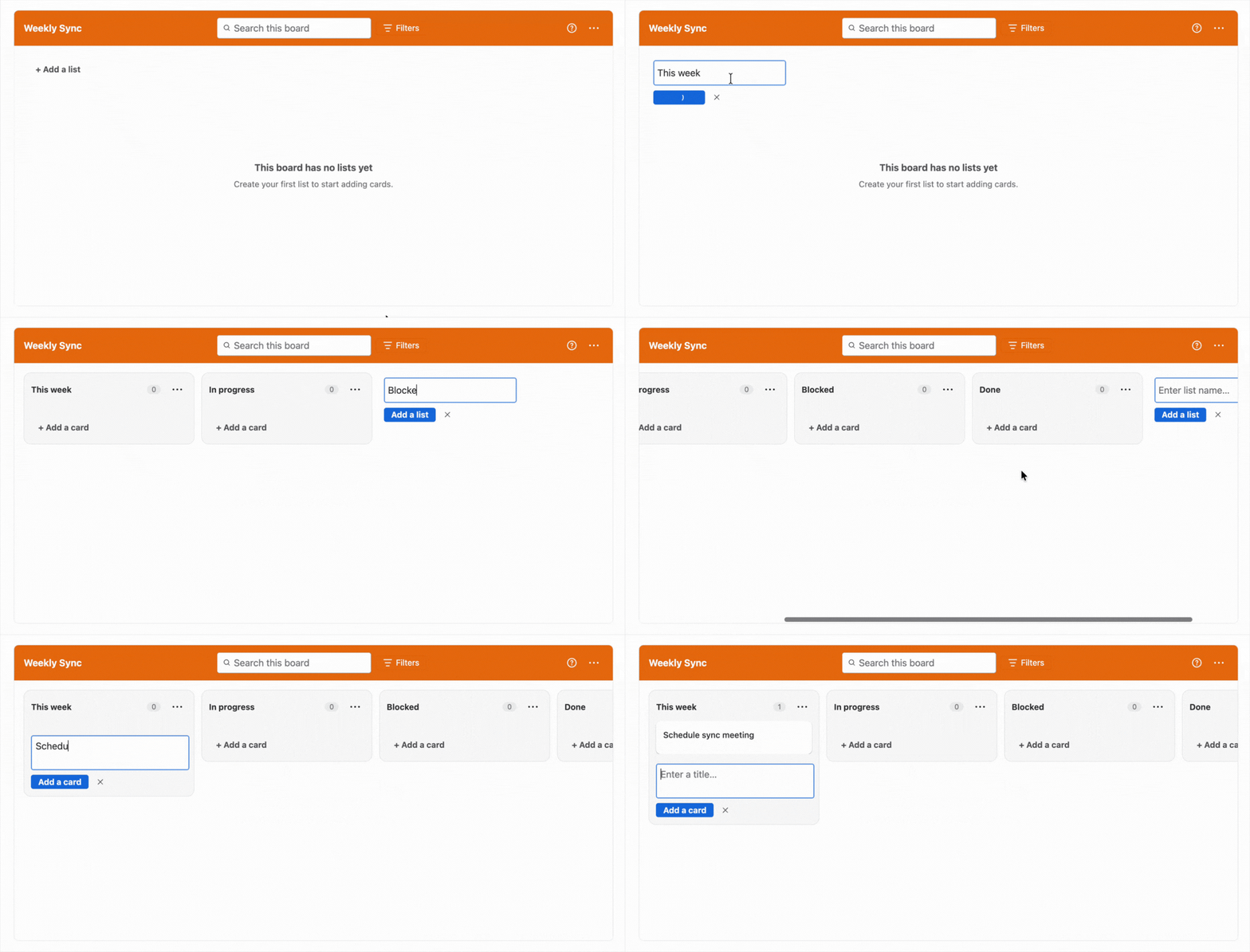
2. Lists
The columns of the board. Use them to group cards, for example by stage (Backlog, In Progress, Done). Each list shows how many cards it contains.
See Working with lists.
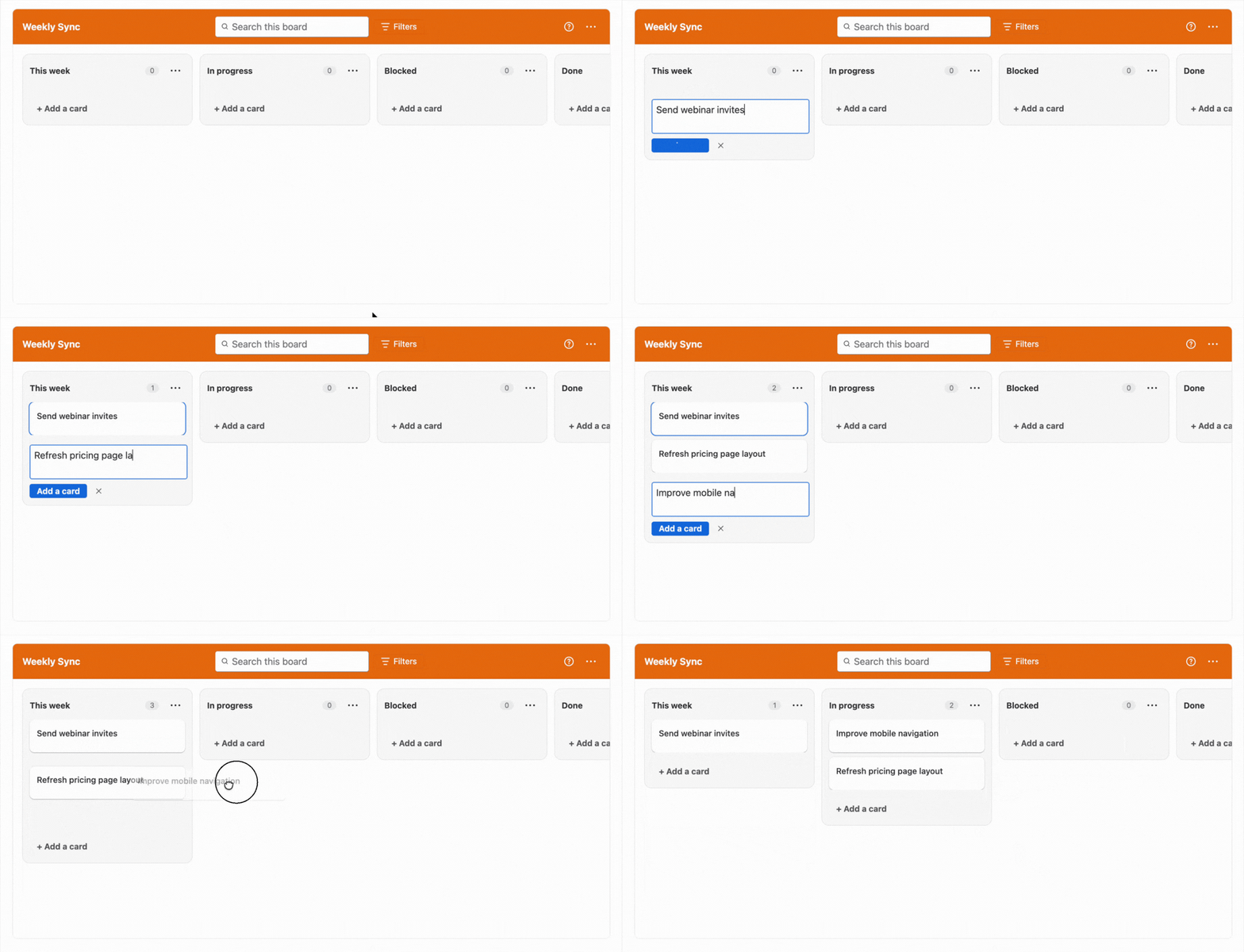
3. Cards
The tasks or items inside each list. Drag and drop them to reorder them or move them between lists.
See Working with cards.
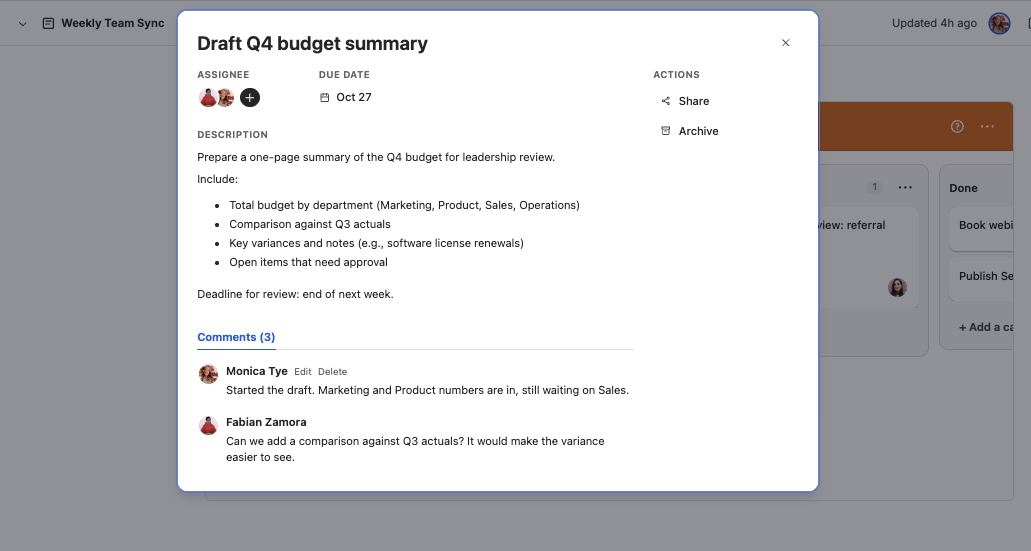
4. Card details
The window that opens when you click a card. Use it to assign people, set a due date, add a description, comment, share, or archive the card.
See Card details.
Next Steps
Learn how to create and organize lists in Working with lists.