
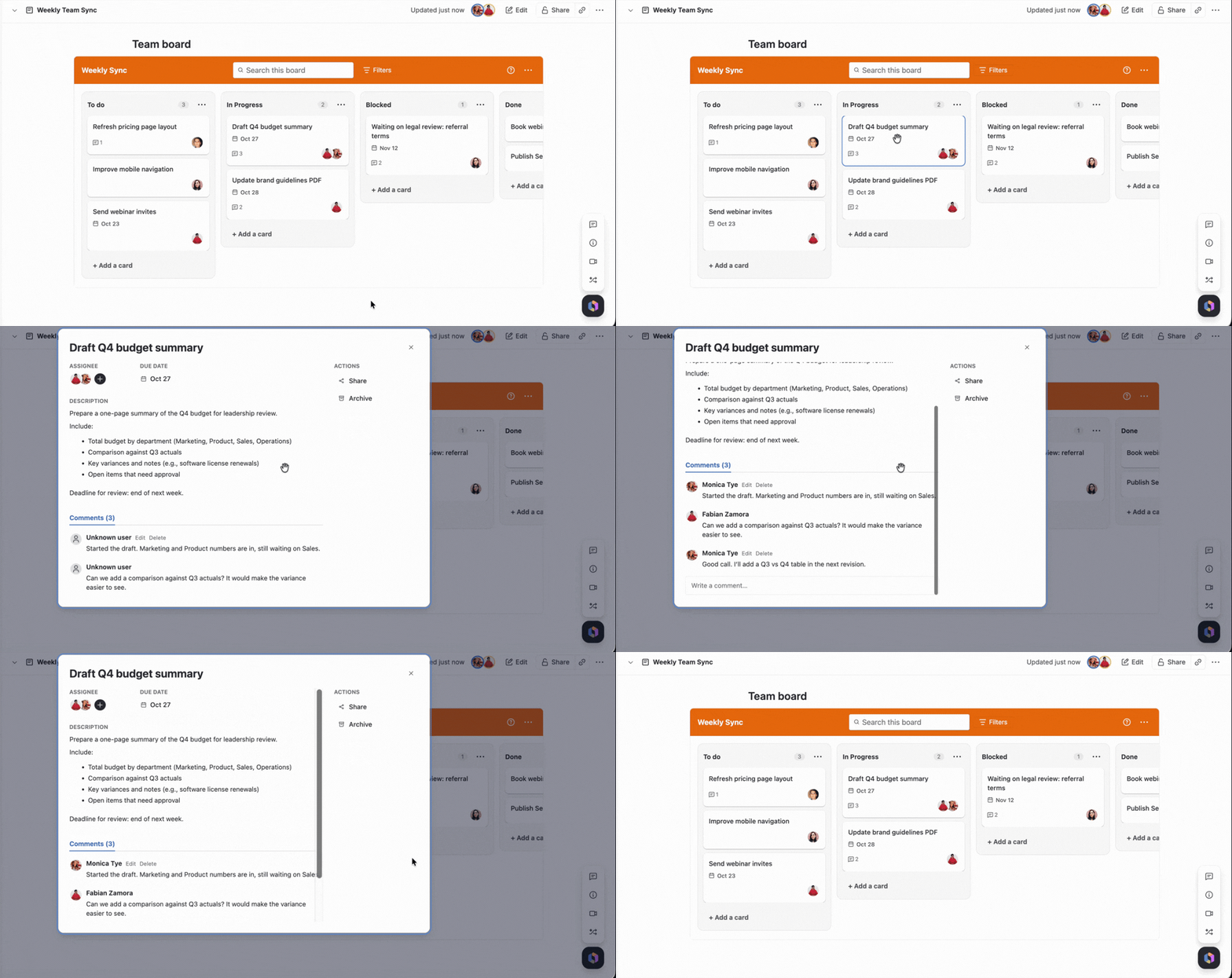
Click any card on the board to open its details. The card opens in a window over the board.
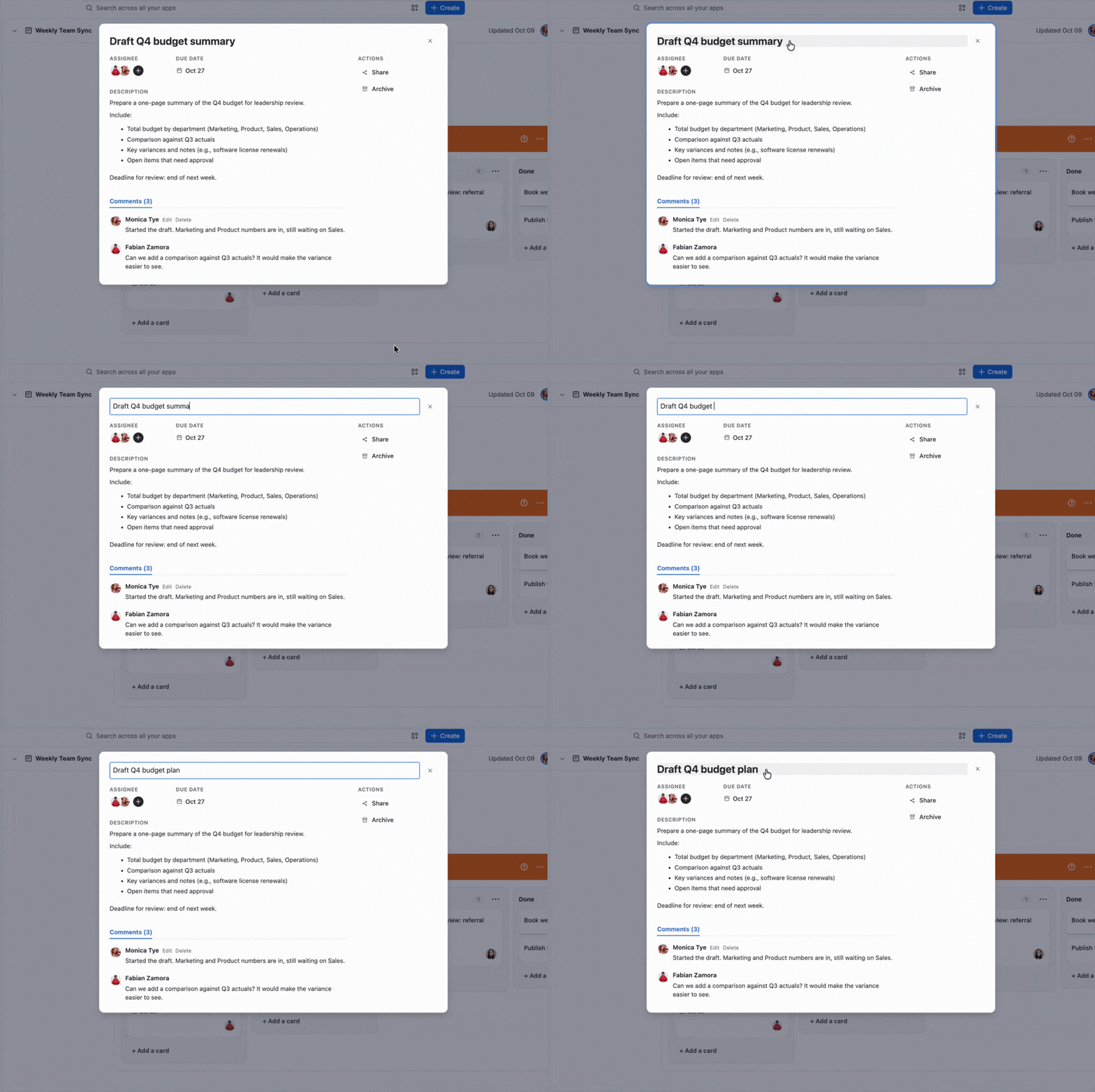
Editing the title
-
Click the card title. It turns into an editable field
-
Type the new name and press Enter, or click outside the field to save it
Assigning members
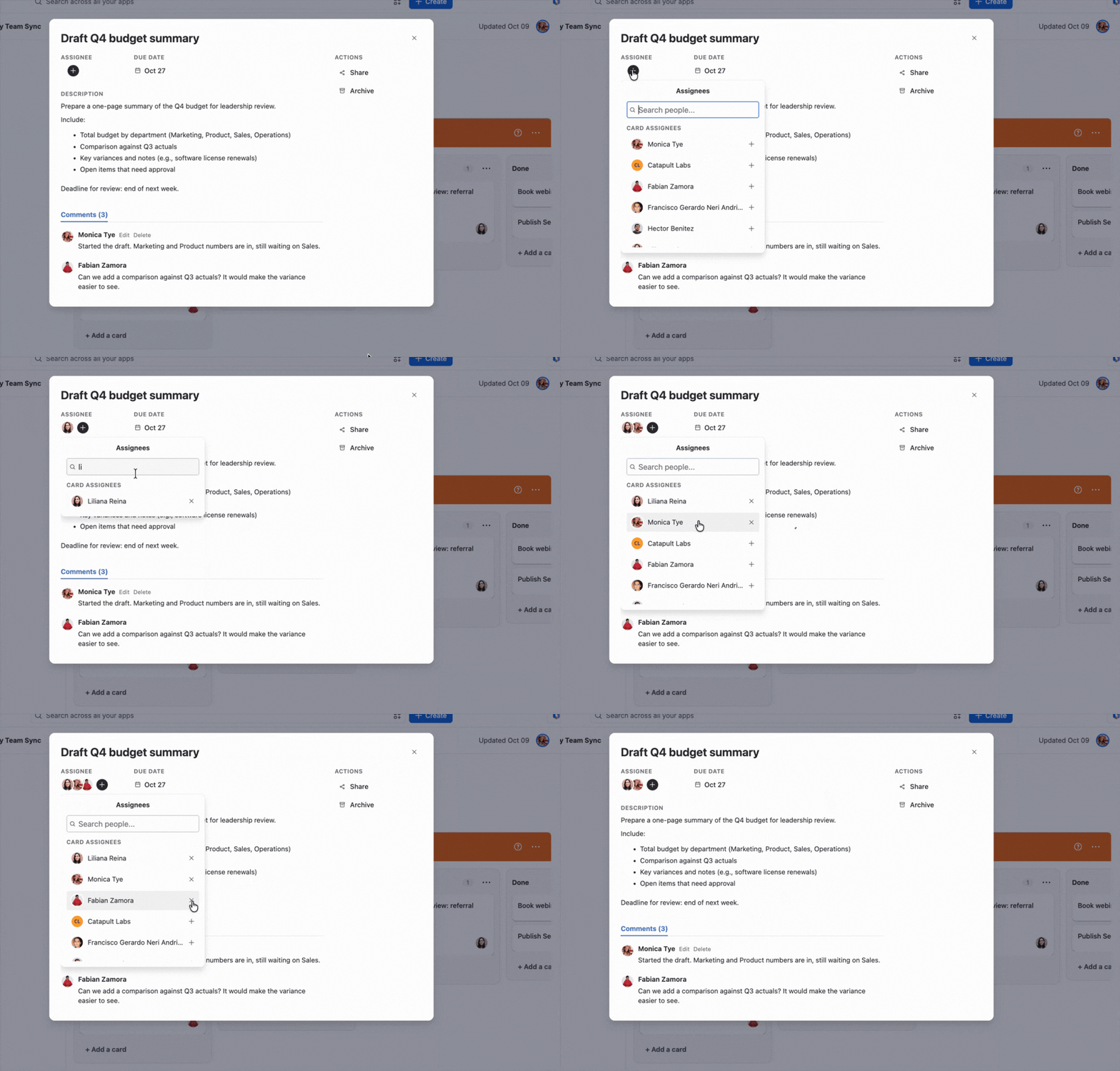
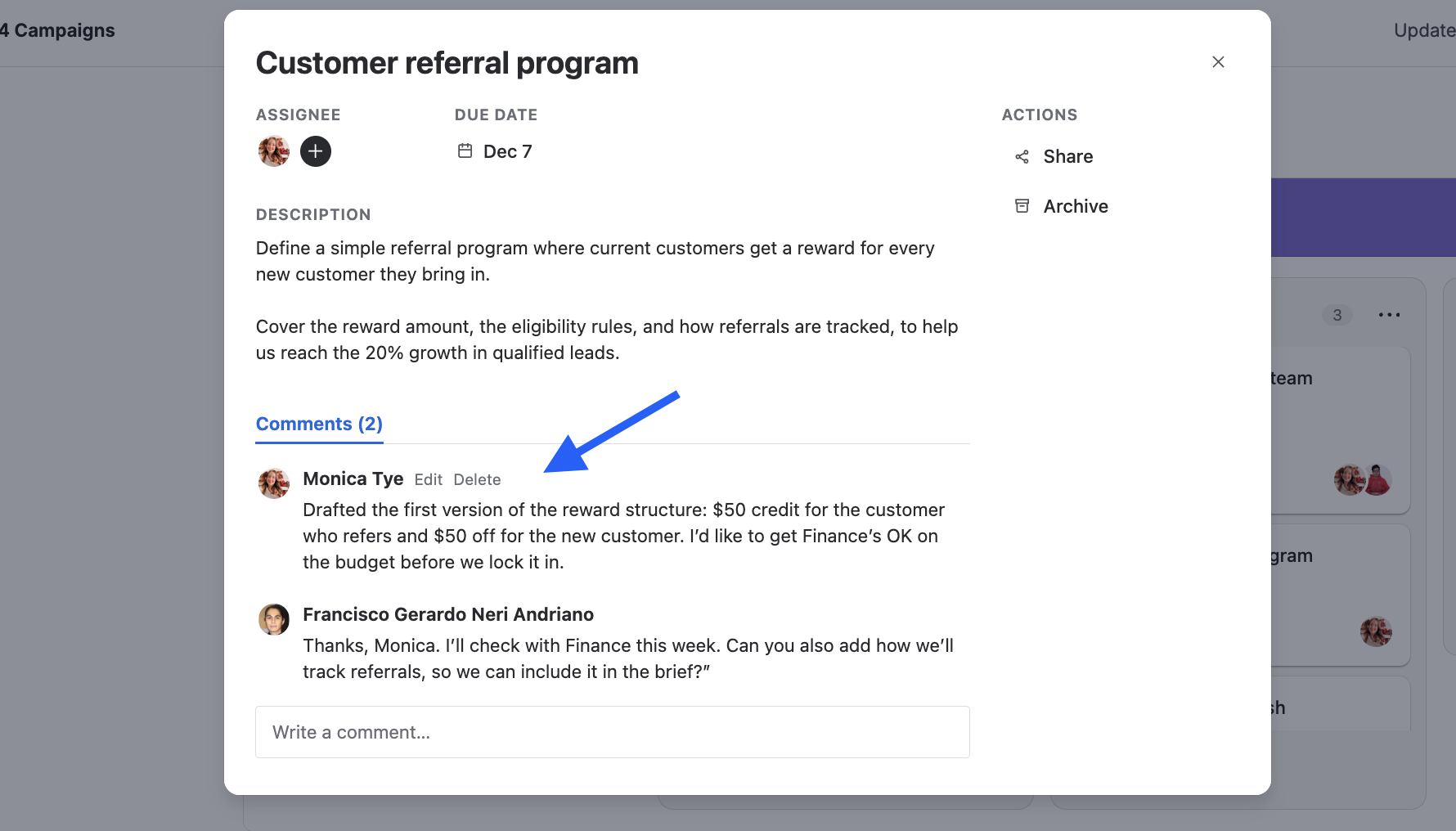
The Assignee field shows the people assigned to the card.
-
Click the + button next to the avatars
-
In the Assignees list, search for a person with Search people…, or scroll through the list
-
Click + next to a name to assign that person
People already assigned appear under Card assignees. To remove someone, click the x next to their name.
Assignees appear as avatars on the card on the board.
Setting, changing, or removing a due date
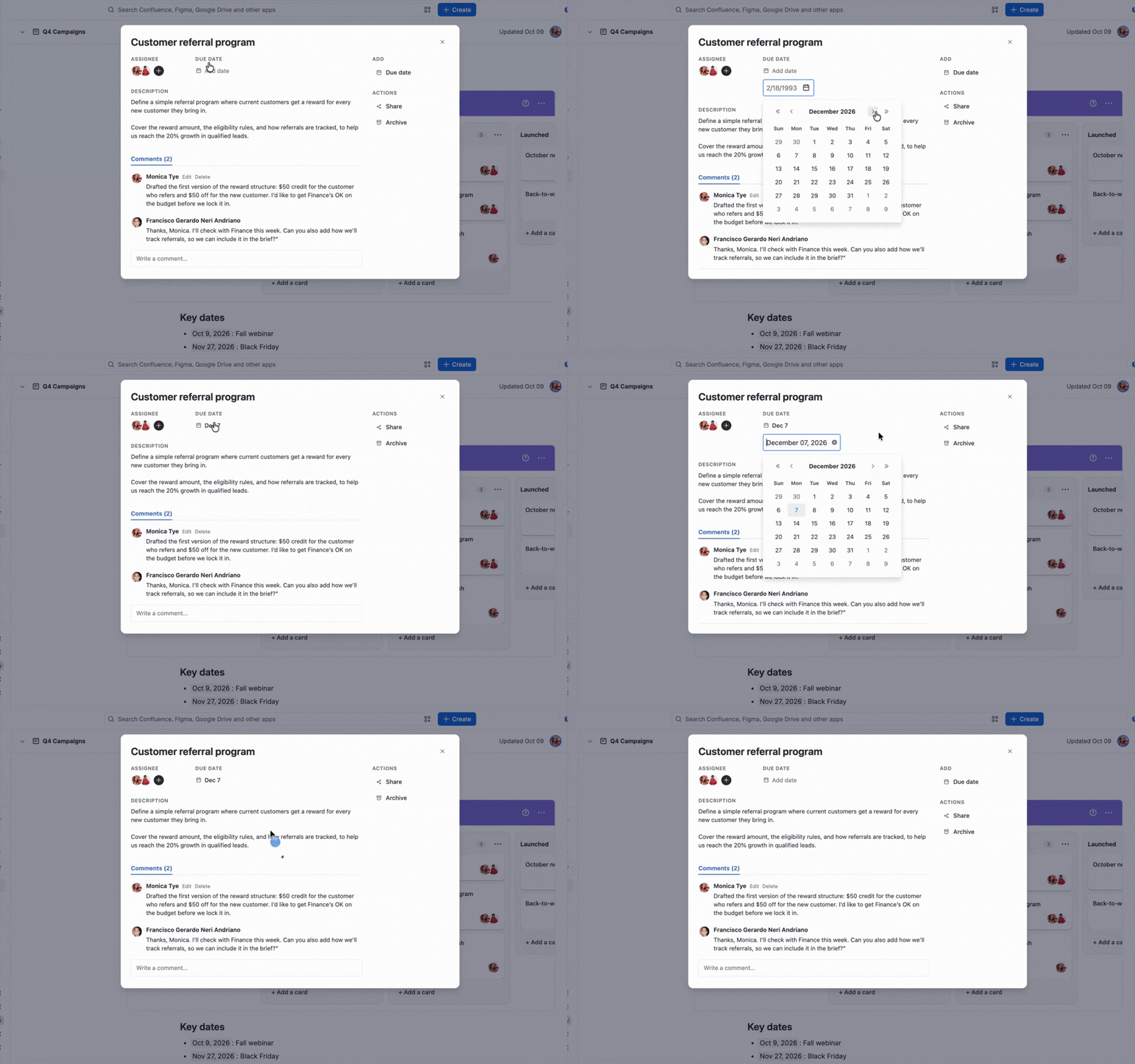
The Due date field shows the date on the card. When a card has a due date, it also appears on the card on the board.
To change or remove it:
-
Click the date
-
Select Change due date and choose a new date, or select Remove due date
Adding or editing a description
-
Click the Description area
-
Write or edit the text
-
Click Save. To discard your changes, click Cancel
Anyone who can edit the board can add, edit, or delete the description.

Comments
The Comments section shows the discussion on the card, with the number of comments next to its title. See Comments.
Actions
-
Share: copies a link to the card so you can send it to a teammate
-
Archive: moves the card out of the board. You can restore it later from Archived items. See Archiving and restoring

Closing the card
Click the X in the top-right corner, press Esc, or click outside the card window.
Next Steps
Learn how to add and manage comments in Comments.